How to export a Windows event log to CSV
A CSV export turns events into rows you can sort in Excel, attach to a ticket or feed to a script. Windows can produce one with Event Viewer or PowerShell. wevtutil cannot write CSV on its own.
Short answer: in Event Viewer, select the log, choose Save All Events As and pick CSV (Comma Separated). In PowerShell, pipe Get-WinEvent through Select-Object into Export-Csv.
Option 1: Event Viewer
- Open Event Viewer (
eventvwr.msc) and select the log, for example Windows Logs, then System, or a file under Saved Logs. - To export only part of it, choose Filter Current Log in the Actions pane and set the level, event IDs or time range.
- Choose Save All Events As, or Save Filtered Log File As when a filter is applied.
- In Save as type, choose CSV (Comma Separated), give the file a name and choose Save.
You get one row per event with the columns from Event Viewer's event list, such as level, date and time, source, event ID and task category, followed by the message text. The exact set follows the columns shown in the list (View, Add/Remove Columns). What you cannot do is pull details out of the event: the user name in a failed logon, for example, stays inside the message text.
Option 2: PowerShell
Get-WinEvent reads the events, Select-Object picks the columns and Export-Csv writes the file. Critical, error and warning events from the System log in the last 24 hours:
Get-WinEvent -FilterHashtable @{
    LogName   = 'System'
    Level     = 1, 2, 3
    StartTime = (Get-Date).AddDays(-1)
} |
    Select-Object TimeCreated, Id, LevelDisplayName, ProviderName, MachineName, Message |
    Export-Csv -Path C:\Temp\system-last-24h.csv -NoTypeInformation -Encoding UTF8
A few details matter here:
- Without
Select-Object,Export-Csvwrites every property of the event, and several of them come out as type names rather than values. -NoTypeInformationstops Windows PowerShell 5.1 from writing a#TYPEline at the top of the file. PowerShell 7 leaves that line out by default.-Encoding UTF8in Windows PowerShell 5.1 writes a byte order mark, so Excel reads accented characters correctly. In PowerShell 7, use-Encoding utf8BOMfor the same result.
To export from a saved file instead, replace LogName = 'System' with Path = 'C:\Logs\system.evtx'. To export from another computer, add -ComputerName SERVER01 to Get-WinEvent.
Keep each message on one line
Multi-line messages are valid CSV but awkward in some tools. A calculated property collapses the whitespace:
Get-WinEvent -LogName Application -MaxEvents 500 |
    Select-Object TimeCreated, Id, ProviderName,
        @{ Name = 'Message'; Expression = { $_.Message -replace '\s+', ' ' } } |
    Export-Csv -Path C:\Temp\application.csv -NoTypeInformation -Encoding UTF8
Put event fields in their own columns
Every event carries named fields in its XML. This turns failed logons (event 4625) into a sheet with the user, domain, logon type and source address as columns. Reading the Security log needs an elevated PowerShell window, or membership in Event Log Readers:
Get-WinEvent -FilterHashtable @{ LogName = 'Security'; Id = 4625; StartTime = (Get-Date).AddDays(-1) } |
    ForEach-Object {
        $e = $_
        $data = @{}
        foreach ($d in ([xml]$e.ToXml()).Event.EventData.Data) { $data[$d.Name] = $d.'#text' }
        [pscustomobject]@{
            Time      = $e.TimeCreated
            Computer  = $e.MachineName
            User      = $data['TargetUserName']
            Domain    = $data['TargetDomainName']
            LogonType = $data['LogonType']
            SourceIp  = $data['IpAddress']
        }
    } |
    Export-Csv -Path C:\Temp\failed-logons.csv -NoTypeInformation -Encoding UTF8
What about wevtutil?
wevtutil prints XML or text, not CSV. It is still useful for cutting a large log down first: this writes only the critical and error events to a new .evtx file, which the PowerShell commands above can then read with Path:
wevtutil epl System C:\Logs\system-errors.evtx /q:"*[System[(Level=1 or Level=2)]]"Exporting to CSV in Event Log Triage
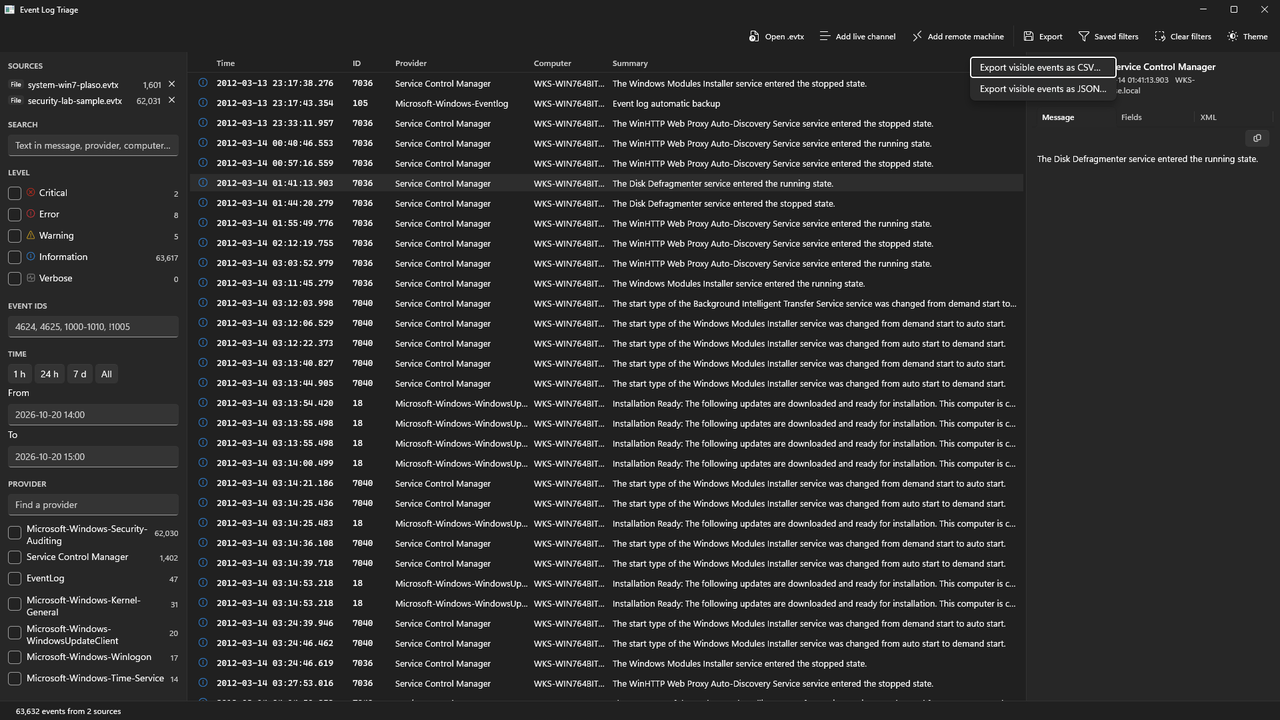
In Event Log Triage, narrow the list until it shows what you need: tick levels, choose providers or computers, type event IDs such as 4625, set a time range or search for a name. Then open Export and choose Export visible events as CSV. The file holds exactly the rows you see, with the account name resolved where possible, and opens in Excel. Export visible events as JSON writes the same rows for scripts. To paste a single event into a ticket, select it and press Ctrl+Shift+C, which copies the row as one tab-separated line.
The list can mix saved .evtx files, live channels and remote computers, so one export can cover several machines at once.
Where Event Log Triage helps
If you run the same export every week, a PowerShell script is free and repeatable, and it is the better tool for that job. Event Log Triage helps when the export comes at the end of an investigation: you narrow the events by clicking rather than writing a filter, check the messages as you go, and export what is on screen from several files and computers at once. Saved filters bring the same view back next time. It reads logs only; it never clears or changes them.
Get Event Log Triage
Free 7-day trial, then a one-time purchase: $9.99 on the Microsoft Store. No account, no telemetry.